
Everything to know about team emails
Using the team space to share information with your members
How to send a notification -- or not
The team space supports communication with all members to help them stay informed of content added or to spur discussions within the group. You will see a checkbox giving you the option to send a notification to members when you create a new:
- Document folder
- Exchange
- Event in a calendar (if your team has chosen to display a calendar)

Uncheck the box if it is not necessary to inform members about the new folder or calendar item you created. You can also opt out of notifying members when you create an Exchange message but when someone comments on an exchange message an email will always be sent to your team members who selected either the Immediate or Daily option (as explained below).
Note: This checkbox will also appear when you edit any of the above items or team webpages. Even though the checkbox is there when editing and you can select the option to send a notification to your team, an email will not be sent.
How to control notifications you receive from the team
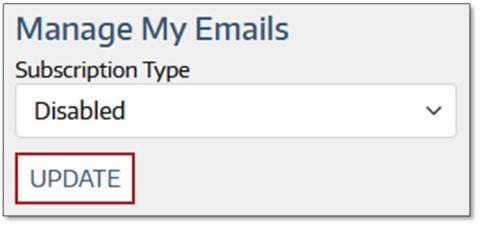
There are three options to choose from when deciding how often you wish to receive email notifications about team activity:
- Disabled - you will receive no emails except for the rare occasion when a team manager sends a direct message through the site
- Immediate - you will receive an email each time new content is added and the uploader checked the box to send a notification
- Daily - you will receive one email a day summarizing the new content that was added if the uploader checked the box to send a notification
When your account is first created your notification setting defaults to Disabled and will remain that way until you change it.
You can have different email notification settings for each team and the easiest way to adjust these settings is within the team. From your My Portal screen, click on the desired team name, and in the right sidebar under Manage My Emails you can choose one of three options.
We recommend discussing these options with your team, especially if anything being shared is time-sensitive or you plan to make use of the Exchanges feature.
When will team members receive notifications?
Immediate emails will arrive within a few hours after the item is created and the Daily email will arrive the following morning.